Begin by opening the Mighty Simple Launchpad. Once the page is open, input your key business details.
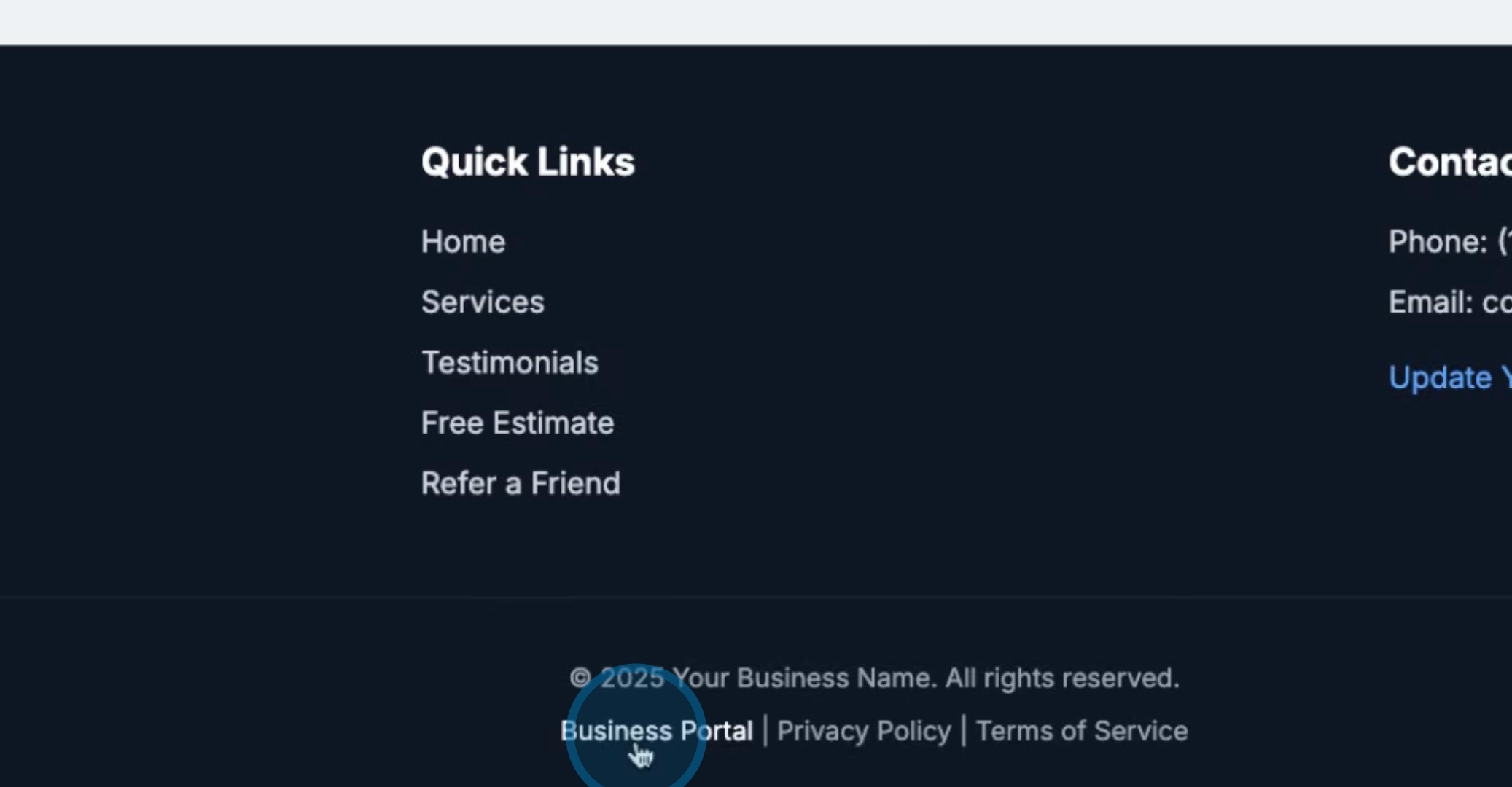
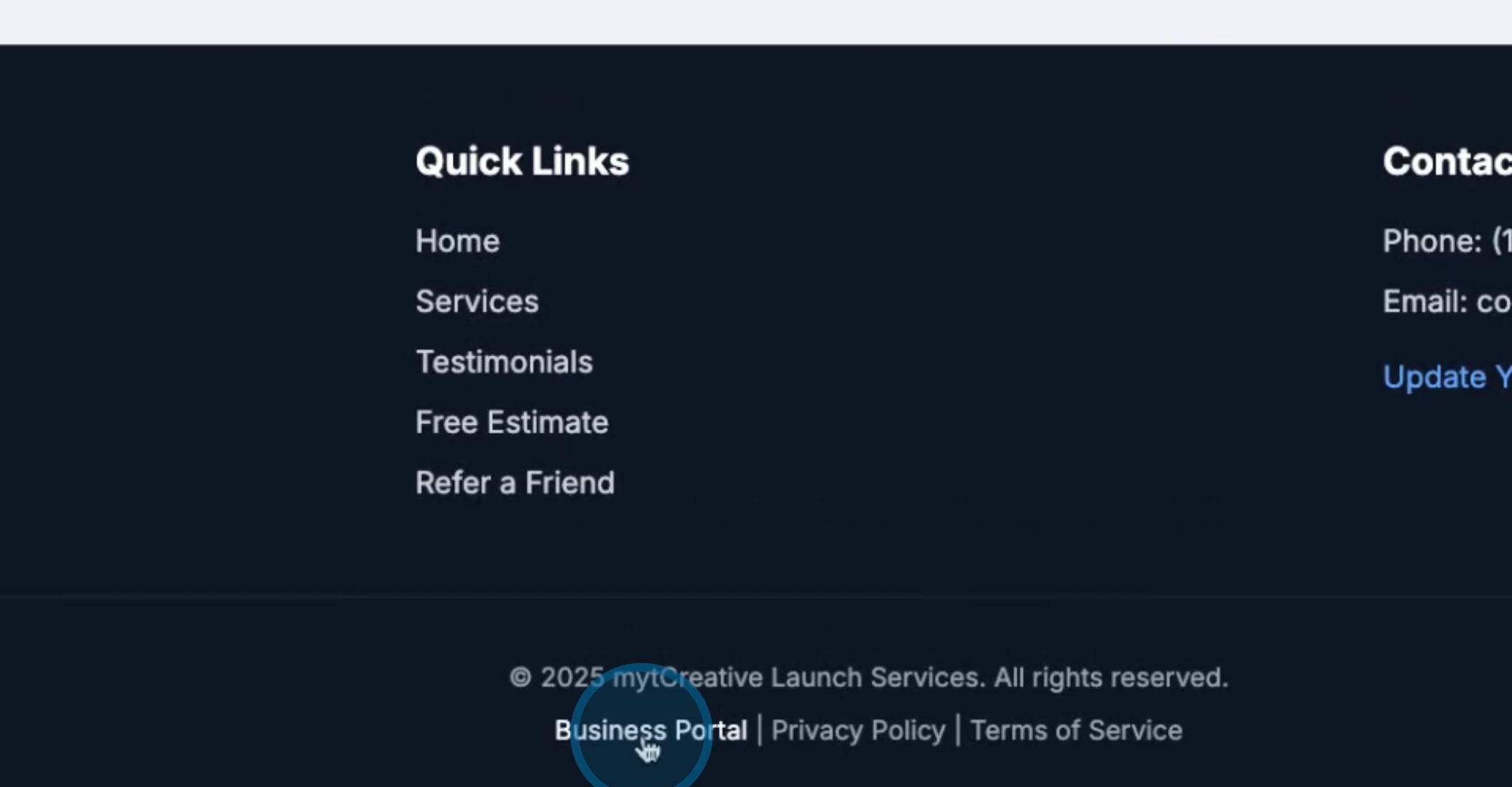
Next, scroll down to the bottom of the page and click on Business Portal.
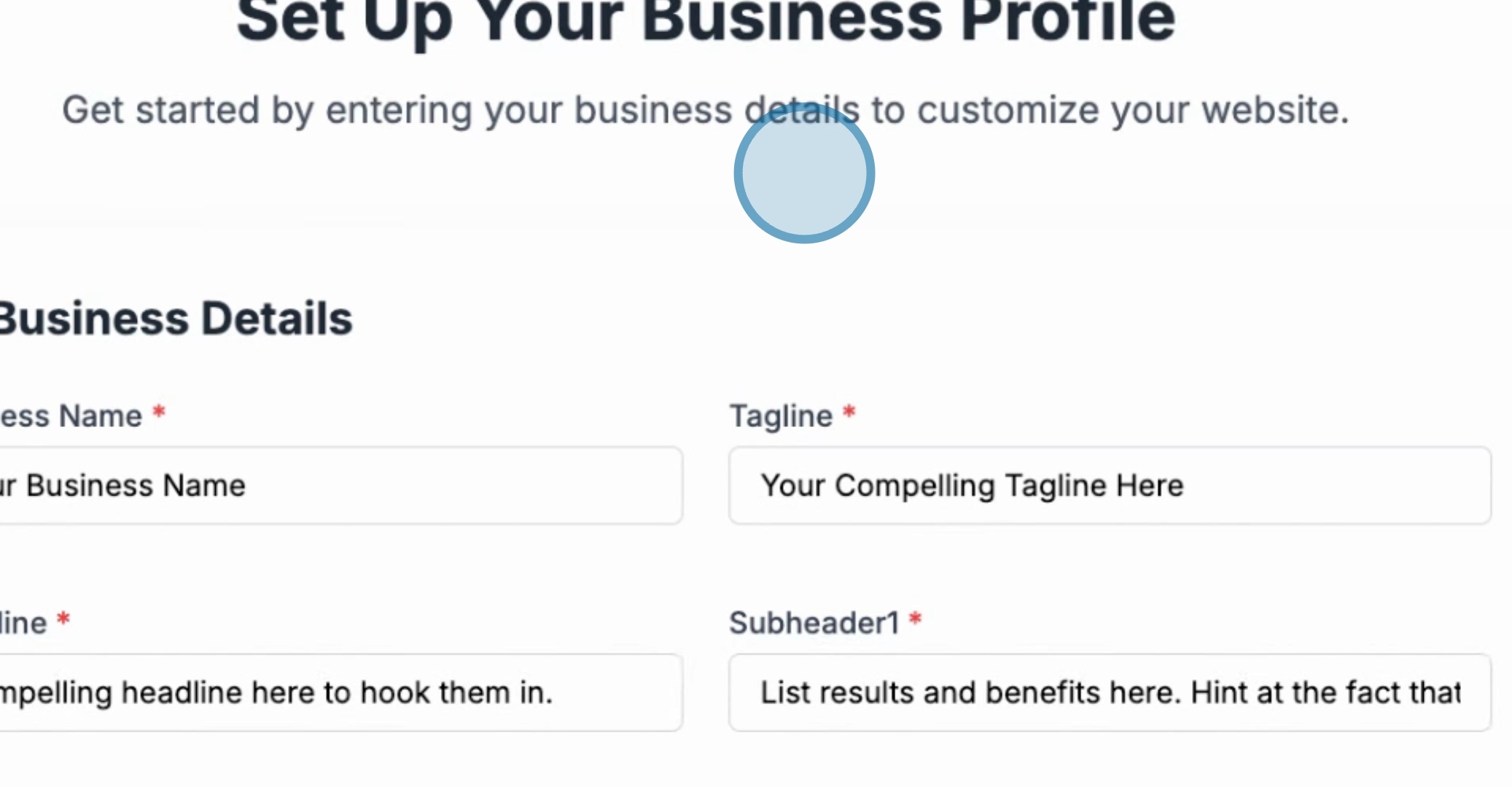
As you enter your key business details, include Mighty Creative Launch Pad Launch services and also enter your tagline, which is when our team becomes your team.
Once you have entered all necessary details, go down to the bottom and hit Save and Continue.
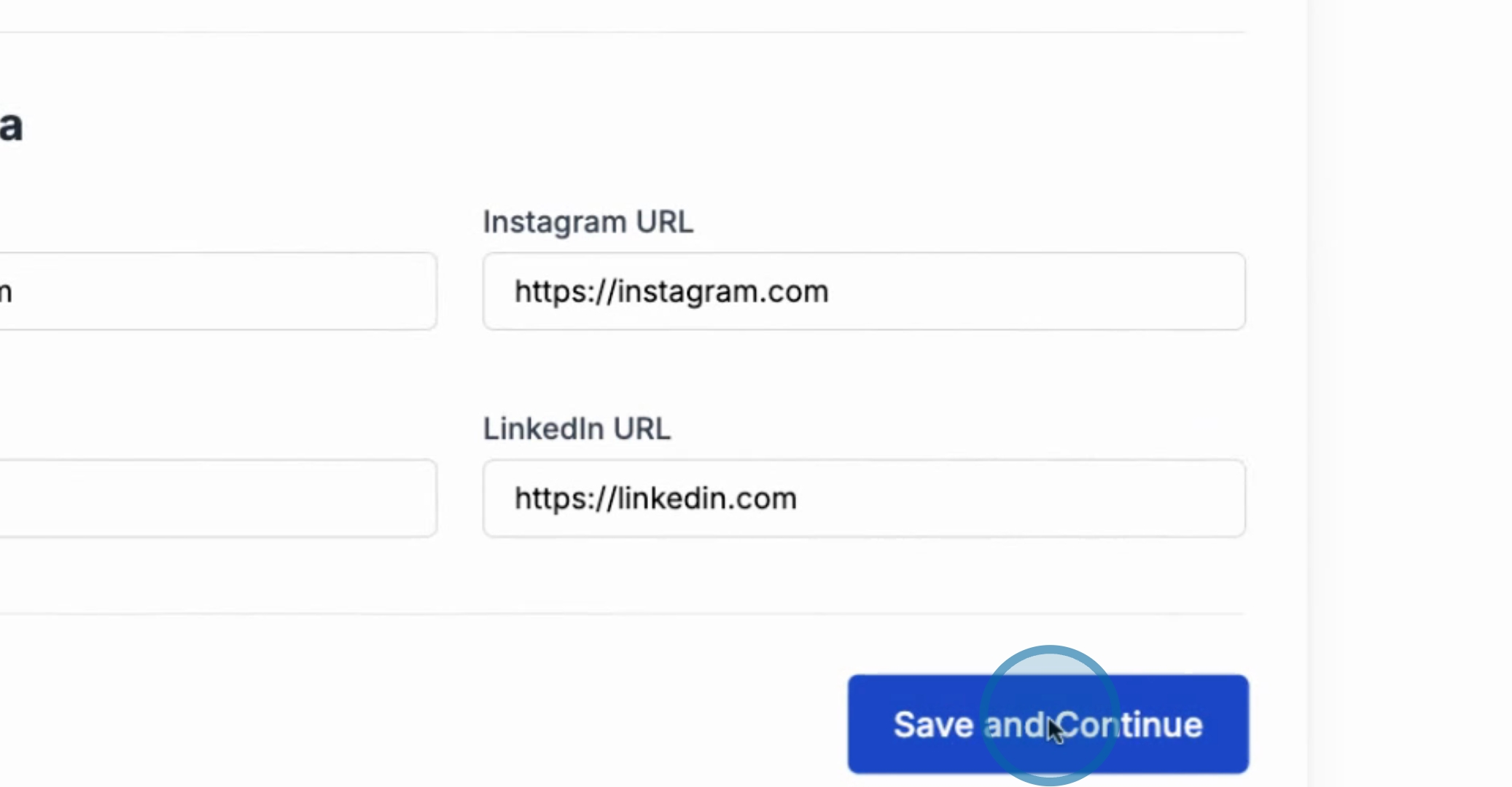
This action will redirect you to the live preview where you can observe that as the information is entered, your website draft is instantly updating.
If you wish to add more information to your services, return to the portal button.
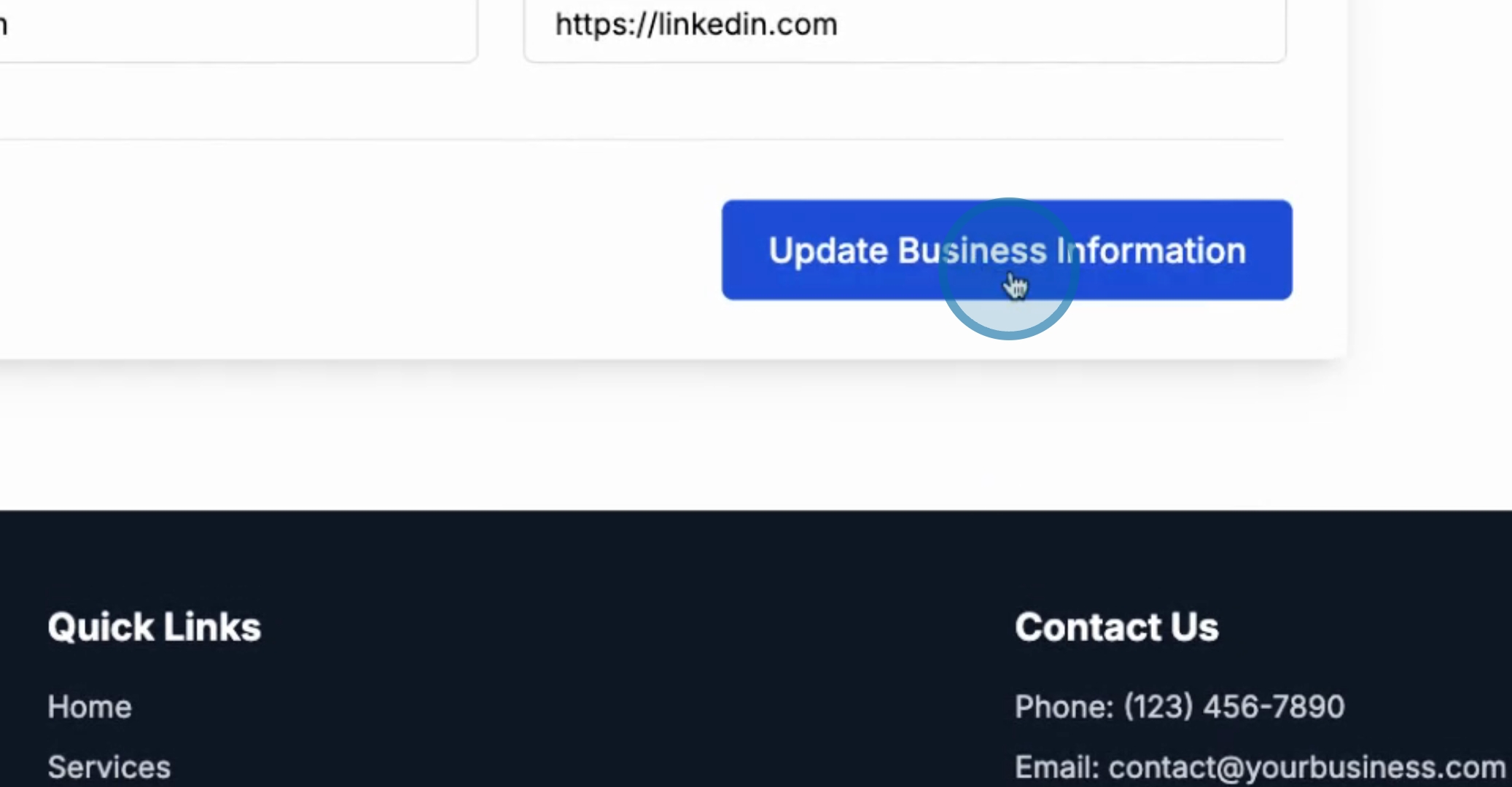
To finalize your changes, make sure to hit Update.
By following these steps, you will successfully launch Mighty Creative with all desired business details and taglines integrated into your website in real time.
